Best Figma Plugins for Designers in 2026
A curated list of the best Figma plugins for UI/UX designers in 2026. Organized by workflow, tested in production, and filtered for plugins that actually save time.
The Figma plugin directory has over 5,000 entries. Most of them do one thing you could do manually in 30 seconds. Some of them haven’t been updated since 2023. A few of them are genuinely great.
We installed, tested, and filtered down to 16 plugins that belong in a modern design workflow. The filter was strict: does it solve a real problem, is it actively maintained, and does it work without breaking your file? If a plugin required five minutes of setup for two minutes of value, it didn’t make the list. Here’s what survived.
AI-Powered Design
This category barely existed two years ago. Now it’s the fastest-moving corner of the Figma ecosystem. These three plugins approach AI from different angles, and each one is worth knowing.
UX Pilot

Generates complete UI screens from text prompts, with built-in predictive heatmaps that show where users will look before you test anything.
- Best for: Product designers who want fast layout exploration without leaving Figma
- Why it works: It doesn’t just generate screens. It layers research validation on top. Describe a dashboard, get three layout options, see predicted attention maps for each. That feedback loop used to take a week.
- Skip if: You need pixel-level control from the start. Treat its output as a first draft, not a final comp.
Relume
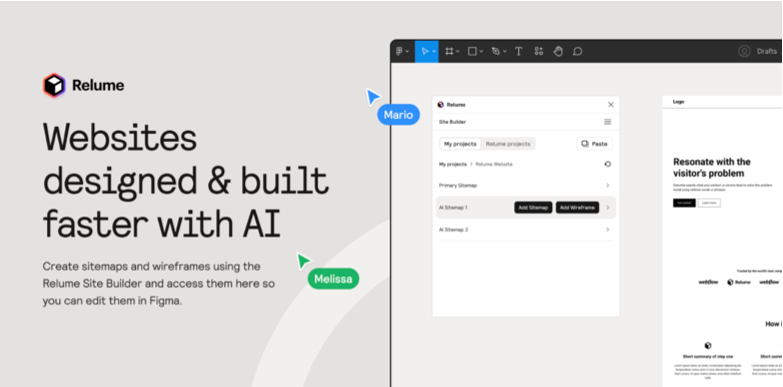
AI wireframing that generates full-page layouts from a sitemap, with direct Webflow export.
- Best for: Freelancers and agencies building marketing sites at speed
- Why it works: You describe a page structure in plain English and get a wireframe with real content hierarchy. The Webflow integration means your wireframe becomes a live site without rebuilding from scratch. It collapses three steps into one.
- Skip if: You’re designing complex product UIs. Relume thinks in pages, not in systems.
Uizard

Converts hand-drawn sketches and screenshots into editable Figma screens.
- Best for: Early-stage ideation and converting whiteboard sessions into working files
- Why it works: Take a photo of a napkin sketch, drop it in, get editable layers. It’s not going to win design awards, but it eliminates the tedious step of manually rebuilding rough concepts. Acquired by Miro in 2024 and still actively developed.
- Skip if: You’re a senior designer who moves faster in Figma than on paper. The translation adds a step you don’t need.
Design Tokens and Systems
If you’re building or maintaining a design system in Figma, token management is the infrastructure layer that holds everything together. These plugins handle the bridge between design decisions and code. For a deeper dive into the full process, check out our guide to building a design system in Figma
Tokens Studio
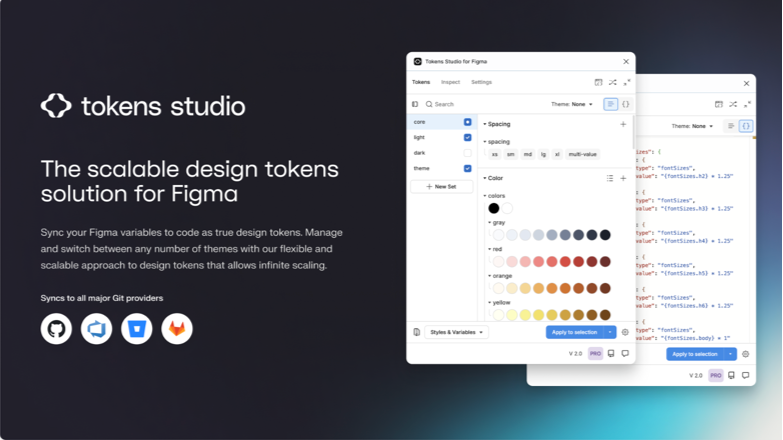
The most established token management plugin for Figma. Syncs design tokens to GitHub, GitLab, or JSONBin with full version control.
- Best for: Design teams maintaining production design systems with developer handoff
- Why it works: It treats tokens as data, not just styles. You define color, spacing, typography, and shadow tokens in a structured hierarchy, then push them to a Git repo where developers consume them directly. Two-way sync means changes flow in both directions. No copy-pasting hex values into Slack.
- Skip if: You’re a solo designer with a small project. The setup overhead only pays off at scale.
Supa Design Tokens
A lighter, faster token setup tool that generates tokens from your existing Figma styles.
- Best for: Designers who want token structure without the full Tokens Studio workflow
- Why it works: Point it at your existing styles. It extracts and organizes them into a token-ready format in minutes. No Git integration, no complex config. Just clean token output you can hand to a developer or feed into a build pipeline.
- Skip if: You need two-way sync or version control. Use Tokens Studio for that.
Design Tokens W3C Export
Exports your Figma tokens in the W3C Design Tokens specification format.
- Best for: Teams adopting the W3C standard for cross-tool token interoperability
- Why it works: The W3C Design Tokens spec is becoming the industry standard for how tokens are defined and shared across tools. This plugin exports your Figma tokens in that exact format. Future-proofing, essentially.
- Skip if: Your team doesn’t care about spec compliance yet. It’s a standards play, not a productivity play.
Accessibility and QA
Accessibility plugins have gone from “nice to have” to “part of the workflow.” Shipping inaccessible designs in 2026 is a liability, not just bad practice. These three cover different depths of the same problem.
Stark
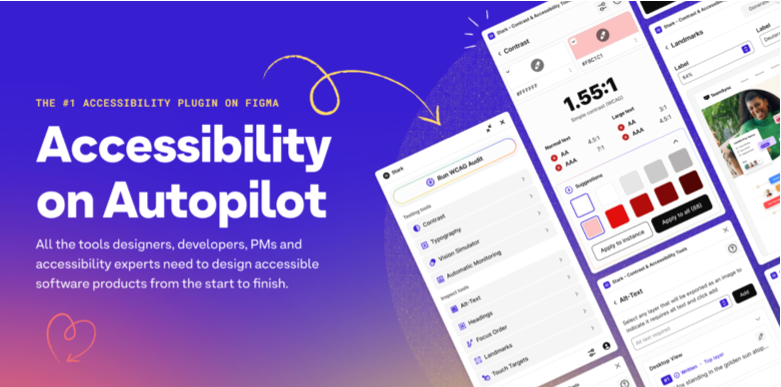
The most comprehensive accessibility suite for Figma. Contrast checking, vision simulation, alt text suggestions, focus order, touch target sizing, and more.
- Best for: Teams that need a full accessibility audit inside Figma
- Why it works: It covers WCAG 2.1 and 2.2 in a single plugin. The vision simulation alone (see your design through the eyes of someone with deuteranopia, protanopia, or low vision) changes how you think about color choices. Integrates with Jira and Linear for issue tracking.
- Skip if: You only need quick contrast checks. Stark is powerful but has a learning curve and a paid tier for full features.
axe for Designers
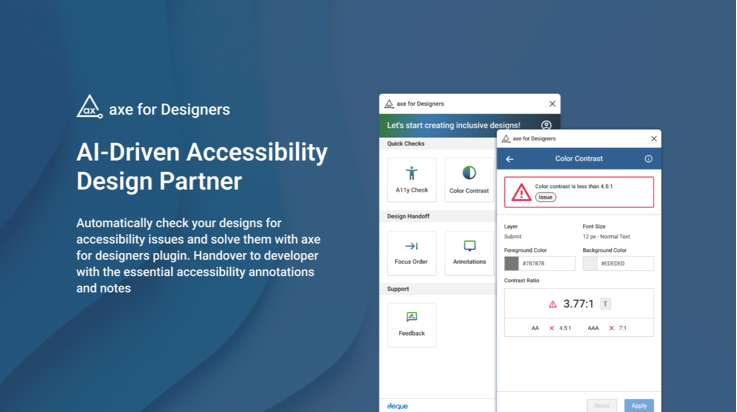
Free AI-powered accessibility checker built by Deque, the same team behind the axe testing engine used by developers worldwide.
- Best for: Designers who want solid accessibility checking without a subscription
- Why it works: It catches color contrast failures, missing labels, touch target issues, and text scaling problems. The AI suggestions are specific: not just “this fails” but “here’s what to change.” And it’s free. That matters for freelancers and small teams.
- Skip if: You need the full depth of Stark’s vision simulations and WCAG 2.2 coverage. axe is excellent for fundamentals, not exhaustive audits.
Contrast

A minimal, fast contrast ratio checker. Select two colors, get a pass/fail against WCAG AA and AAA.
- Best for: Quick spot-checks during active design work
- Why it works: No setup. No dashboard. Select foreground and background, see the ratio. It does one thing and does it instantly. When you’re iterating on color and need to verify contrast every few minutes, speed matters more than features.
- Skip if: You need anything beyond contrast ratios. For broader checks, use Stark or axe.
Accessibility plugins catch issues, but they don’t replace accessible design thinking. For a practical UI accessibility checklist covering typography, interaction, motion, and navigation, see our guide to accessible interface design.
Content and Data
Placeholder content is one of those small problems that eats real time. These plugins fill your designs with realistic data so you’re not designing around “Lorem ipsum” and gray boxes.
Content Reel
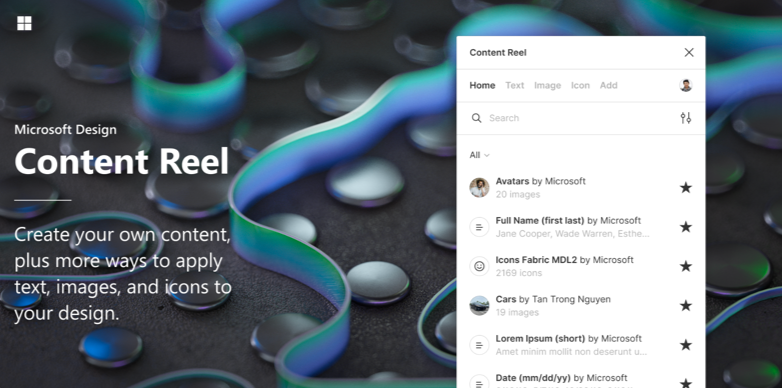
Populates designs with realistic names, addresses, avatars, dates, and custom text strings.
- Best for: Filling complex UIs (tables, user lists, profiles) with varied, realistic content
- Why it works: It randomizes data intelligently. You get different names, different lengths, different avatar photos. Your design gets stress-tested with real variation instead of looking perfect with identical placeholder text. Custom strings let you add your own content sets.
- Skip if: You only need photos. Use Unsplash for that.
Unsplash
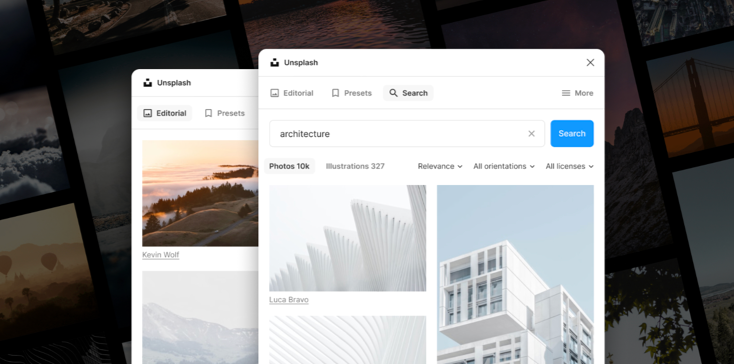
Inserts free, high-quality stock photos directly into your Figma frames.
- Best for: Quick image fills for mockups and presentations
- Why it works: Search, click, done. The image lands in your selected frame at the right size. No downloading, no resizing, no attribution headaches (Unsplash license covers commercial use). It’s been around for years because it just works.
- Skip if: You need editorial or brand-specific photography. Stock photos have a look. You know it when you see it.
Google Sheets Sync
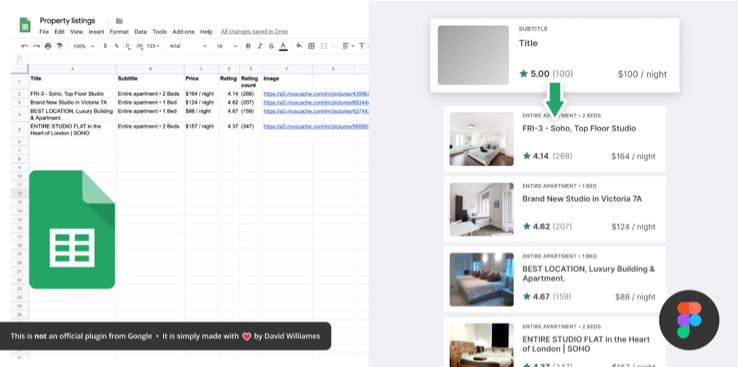
Pulls live data from Google Sheets into Figma text layers and images.
- Best for: Data-driven designs, dashboard mockups, and CMS-style content management
- Why it works: Connect a spreadsheet, map columns to layers, sync. Your design updates when the data changes. For dashboard designs with 50 data points, this saves hours of manual entry. For client presentations, it means real numbers instead of made-up ones.
- Skip if: You need real-time API data. This syncs on demand from Sheets, not from live endpoints.
Icons and Assets
Icon management sounds trivial until you’re searching through five different icon sets trying to find a consistent “settings” icon at 2 AM. These two plugins solve that.
Iconify
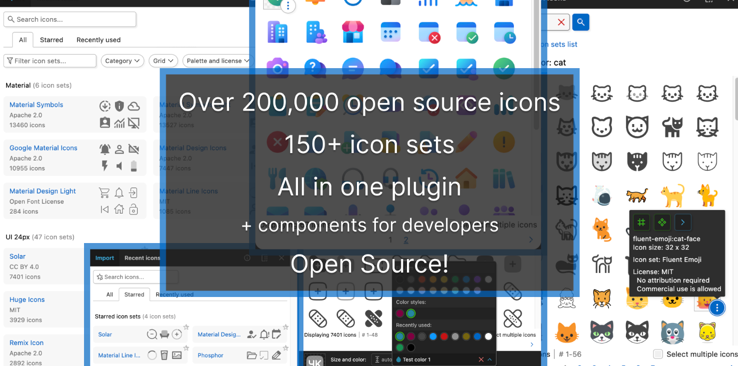
Access to over 275,000 icons from 150+ open-source icon sets, searchable inside Figma.
- Best for: Designers who work across projects with different icon style requirements
- Why it works: One search bar, every major icon set. Material Design, Heroicons, Lucide, Tabler, Bootstrap, Phosphor, and dozens more. You search “calendar,” you see every version across every set. Pick the style that fits, drop it in. No more downloading ZIP files and importing manually.
- Skip if: You’ve already committed to a single icon set. In that case, use that set’s own plugin.
Phosphor Icons
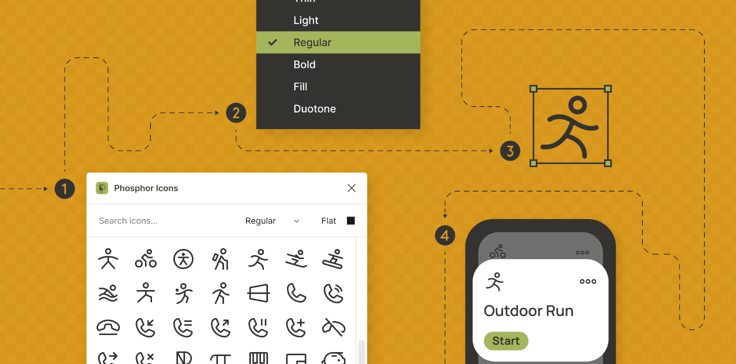
A focused library of 1,500+ icons in six weights (thin, light, regular, bold, fill, duotone).
- Best for: Product teams that want a single, consistent icon system with weight variation
- Why it works: Six weights for every icon means you can match your typography weight. Thin icons for body text contexts, bold for navigation, fill for active states. That level of weight consistency across 1,500+ icons is rare. The duotone style is genuinely distinctive.
- Skip if: You need a massive icon library. 1,500 covers most product needs, but niche categories may have gaps.
Productivity and File Health
Figma files get messy. Layers named “Frame 847,” hidden elements nobody remembers, unused styles. These two plugins keep your files workable.
Rename It
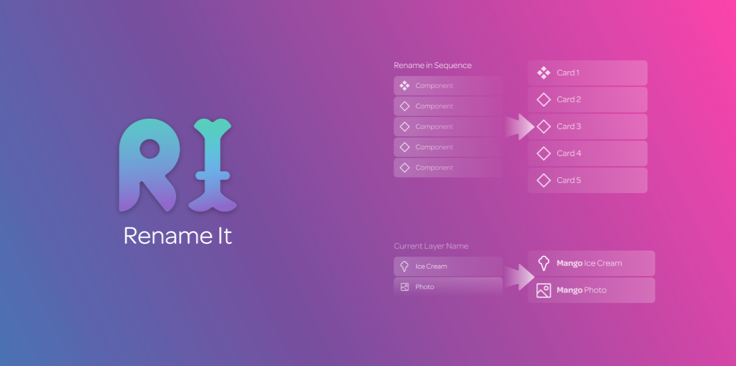
Batch rename layers with sequential numbering, find-and-replace, and keyword patterns.
- Best for: Cleaning up files before handoff or when layer naming has gotten out of control
- Why it works: Select 200 layers, apply a naming pattern with auto-incrementing numbers, done. Regex support for power users. It turns a 30-minute manual renaming session into a 30-second operation.
- Skip if: You name your layers properly as you go. (Be honest with yourself here.)
Cleaner
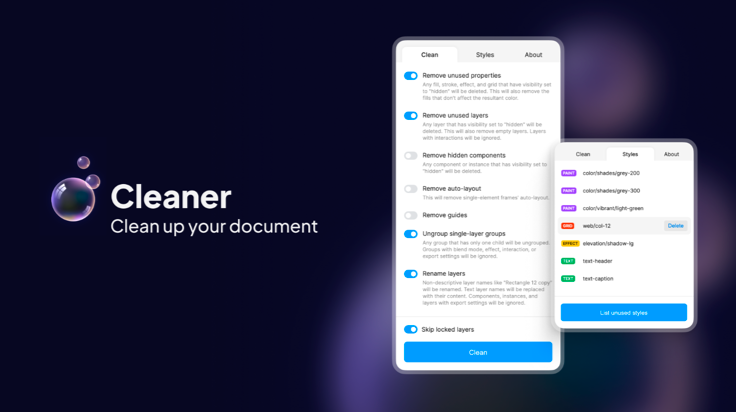
Scans and removes hidden layers, empty groups, and unused elements to reduce file size and complexity.
- Best for: Large files that have accumulated cruft over months of iteration
- Why it works: Figma files slow down when they’re bloated with invisible junk. Cleaner finds it, shows you what it found, and lets you remove it in bulk. The preview step matters. You see exactly what will be deleted before anything happens.
- Skip if: Your files are small and well-maintained. On big team files with 50+ pages, though, this is essential.
How to Build Your Plugin Stack
Not every plugin on this list belongs in your workflow. Here’s how to think about it.
If you’re a solo product designer: Start with Stark (or axe if budget is tight), Content Reel, Iconify, and Rename It. That covers accessibility, content, assets, and file hygiene. Add an AI plugin when you’re comfortable with the basics.
If you run a design system: Tokens Studio is non-negotiable. Add W3C Export if your team is adopting the spec. Cleaner keeps your shared libraries from bloating.
If you’re a freelancer building websites: Relume for wireframing, Unsplash for imagery, Google Sheets Sync for client content. Speed is your advantage.
If you lead a design team: Stark for accessibility compliance, Tokens Studio for system consistency, Cleaner for file health. These three compound across every designer on your team.
One principle applies everywhere: install plugins one at a time. Use each one for a week before adding the next. A stack you understand beats a stack you installed.
Key Patterns
Looking across the plugins that made this list, a few trends stand out:
- AI plugins are maturing fast. Two years ago, AI Figma plugins generated novelty screenshots. Now UX Pilot, Relume, and Uizard produce genuinely useful starting points. The gap between “AI output” and “shippable design” is shrinking.
- Tokens are becoming infrastructure. The W3C spec, multi-platform sync, and Git-based workflows mean design tokens are no longer optional for serious teams. They’re the bridge between design and engineering.
- Accessibility moved from audit to workflow. Stark, axe, and Contrast exist because accessibility checks should happen during design, not after development. The plugins that embed into your process win over the ones that require a separate review step.
- File health is a scaling problem. Solo designers rarely need Cleaner or Rename It. Teams of five or more can’t survive without them. Plugin value scales with team size and file complexity.
- The best plugins do one thing. Contrast checks contrast. Rename It renames layers. Unsplash inserts photos. The plugins that try to do everything tend to do nothing well. Specificity wins.
Discover more design tools and resources on Muzli. Curated daily for designers who build.
Looking for more daily inspiration? Download Muzli extension, your go-to source for everything design.
Related articles

Figma Just Opened the Canvas to AI Agents – Here’s What It Means for Designers

Best Figma UI Kits and Design Systems for 2026

Claude Code to Figma: How the New “Code to Canvas” Integration Works

Figma vs Framer: Which Design Tool Should You Actually Use in 2026?

How to Build a Design System in Figma: A Practical Guide (2026)

From Design to Code Without Losing Context: An MCP-First Workflow

Best Figma Plugins For Designers In 2025
More categories
Looking for more daily inspiration? Download Muzli extension your go-to source for design inspiration!
Get Muzli for Chrome


