From Design to Code Without Losing Context: An MCP-First Workflow
Looking for a seamless way to turn AI-generated code into real design assets? Continue with our follow-up guide, Claude Code to Figma: How the New “Code to Canvas” Integration Works, and see how the MCP-first workflow evolves into a fully visual pipeline.
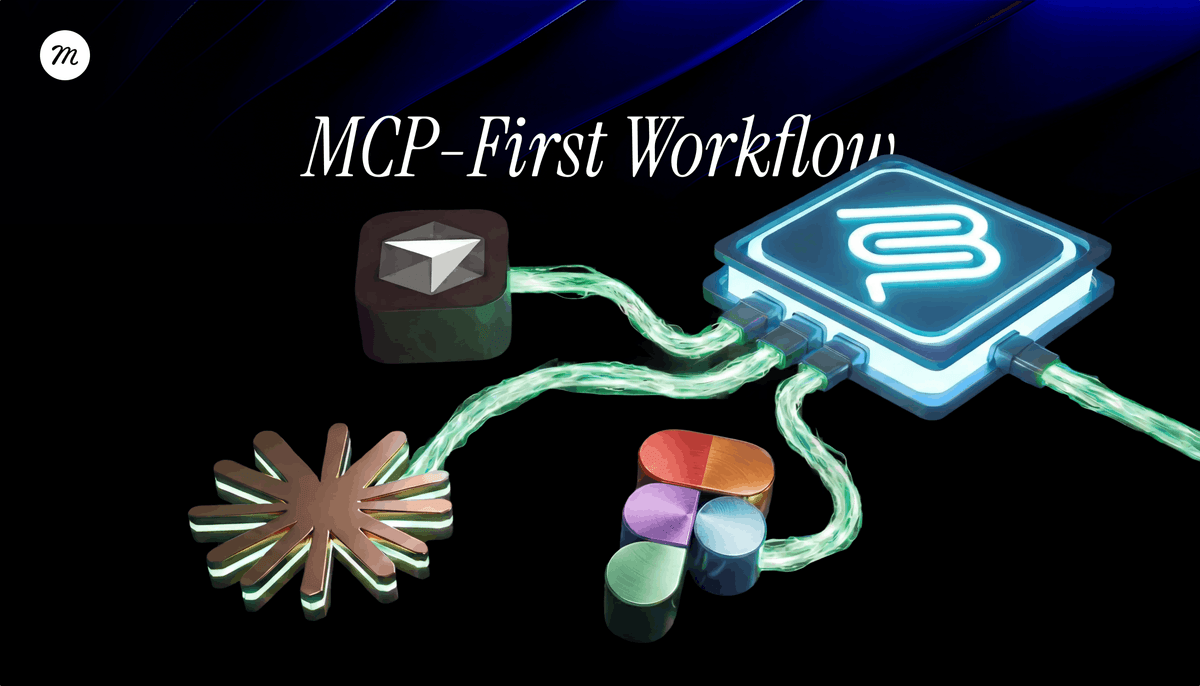
A practical example of preserving design context across AI and development tools
AI tools are now involved in every stage of product development, but most workflows still break at the handoff points. This article presents a practical example of an MCP-first design to development workflow, showing how design, AI, and development tools can work together as one continuous system.
The process described here is one example among many. Its purpose is not to define a single correct workflow, but to demonstrate how shared context and clean handoffs can turn disconnected tools into a coherent product process.
Why this matters now
Over the past year, AI has quietly entered almost every part of the product lifecycle.
Design teams experiment with AI inside design tools.
Developers rely on AI-assisted coding environments.
Product teams look for ways to speed things up across the board.
And yet, the biggest problem has not been capability.
It has been fragmentation.
Design intent gets lost between tools.
AI reinterprets decisions instead of continuing them.
Development often starts with partial context and missing assumptions.
This is where an MCP-first approach becomes useful.
MCP as a connective principle
MCP, Model Context Protocol, is not a specific product or platform.
It is a way of thinking about how context moves between tools.
Instead of each tool starting from scratch, MCP enables tools to share structured context such as:
- component structure
- naming conventions
- design rules
- system constraints
- decisions already made
The goal is not more automation.
The goal is continuity.
Each step should continue the previous one, not reinterpret it.
Starting point: a finalized design in Figma
This workflow begins after exploration and discovery.
At this stage, there is a finalized Figma file that represents real product decisions:
- defined components
- a connected design system
- design tokens
- a clear hierarchy
- states and behaviors
Figma acts here as a source of intent.
Not only how the interface looks, but how it is meant to behave, scale, and remain consistent.
For an MCP-based workflow to work well, the design needs to be reasonably structured and system-aware.
AI does not fix messy foundations. It amplifies them.
Connecting Figma to a language model via MCP
The next step is creating an MCP connection between Figma and a language model.
The model does not receive screenshots or flattened exports.
It receives structured design context:
- component names
- hierarchy
- relationships
- tokens
- references to the design system
Claude is used here as an example, but it is not a requirement.
The same approach can be applied with other language models, including internal or open-source ones.
What matters is the model’s ability to read structured context, reason about design decisions, and produce precise, execution-oriented output.
The language model as a design interpreter
In this workflow, the language model is not acting as a designer.
Its role is to interpret the existing design and translate it into explicit instructions.
Using a dedicated skill or structured process, the model produces a specification that describes:
- component structure
- rules and constraints
- token usage
- interactions and states
This is not a creative prompt.
It is a specification.
This step is the core of the workflow.
It turns visual intent into something downstream tools can execute reliably.
Creating a prototype in Figma Make using the specification
Figma Make is used next, but not in isolation.
It is already connected to:
- the design system
- the token setup
- the same naming conventions used in the design
The specification produced by the language model is provided as input.
This means the prototype is not generated directly from the design file itself, but from a clear interpretation of it.
The result is a prototype that is consistent, aligned with prior decisions, and suitable as a foundation for further development.
Moving the result into GitHub
Once the prototype is created, it needs to become part of the broader product workflow.
With a single push, the output of Figma Make is moved into GitHub as part of the existing project.
The key idea here is the transition itself.
What was created in a design-driven environment becomes a shared technical baseline that development tools can work with and build upon.
GitHub serves as the meeting point between design, AI, and development, and allows the work to continue without losing context.
Continuing development in Cursor
From GitHub, the workflow continues in Cursor.
Cursor does not start from a blank state.
It works with an existing structure that already reflects:
- design intent
- system rules
- previous decisions
At this stage, teams can add logic, connect data, refine interactions, and move closer to a production-ready product.
AI here is not inventing the product.
It is continuing it.
MCP setup between GitHub and Cursor
Pulling a project from GitHub into Cursor
The workflow at a glance
At a high level, this MCP-first design to development workflow looks like this:
- Figma defines intent
- a language model interprets that intent
- a structured specification bridges design and execution
- Figma Make generates a prototype
- GitHub becomes the shared baseline
- Cursor continues development
MCP is what keeps this chain intact.
Why this approach works in real teams
The value of this workflow is not speed.
It is alignment.
Design decisions are preserved instead of reinterpreted.
AI works with context rather than guessing.
Development continues from a shared understanding instead of reconstructing intent.
Each step hands over context, not just output.
The tools can change.
The order can evolve.
The models can be replaced.
What should remain is the principle that tools should continue each other, not reinterpret each other.
That is the difference between experimenting with AI and actually building products with it.
……
💡 Stay inspired every day with Muzli!
Follow us for a daily stream of design, creativity, and innovation.
Linkedin | Instagram | Twitter
- AI,
- Figma,
- Guides,
- Technology,
- Tools
Looking for more daily inspiration? Download Muzli extension, your go-to source for everything design.
Related articles

Figma Just Opened the Canvas to AI Agents – Here’s What It Means for Designers

Lovable for Designers: The Complete Guide to Building Apps with AI (2026)

Google Just Introduced “Vibe Design” with Stitch. Here’s What It Means for UI Designers

Weekly Designers Update #543

Best AI Design Tools for UI/UX Designers in 2026

The Complete Vibe Coding Guide for Designers (2026)

How to Build a 2026 Design Portfolio: Why You Need More Than Just Pixels
More categories
Looking for more daily inspiration? Download Muzli extension your go-to source for design inspiration!
Get Muzli for Your browser

